

Rendering for Architects in 2025: Fast, Believable, Client-Ready
I am not promising future magic. It already arrived. What matters now is who can turn a model into a client-ready image in a day, not a week, and still keep it buildable. This is about speed and realism with smart image tools in 2025, the flow offices are actually using, what fails, and what got better.
Architectural rendering used to be slow and fragile. One client change could break a whole scene. In 2025 the pattern is cleaner. The real model lives in Revit, Rhino, or SketchUp. A fast render tool gives you the base. The image step does the last 30 percent like skies, entourage, material tweaks, and time of day. That is why teams are showing ideas earlier and getting approvals earlier.
Why Rendering Got Faster and Why You Have to Match It
Clients scroll feeds full of polished architectural images. If your render looks older than their phone, they will ask why it looks flat. The answer is not to leave BIM or to fake everything. The answer is to keep geometry in your main tool, render once in Enscape, D5, Lumion, or Omniverse, and let the image step fix sky, lighting balance, entourage, and alternates. You stay in charge of the design. You stop losing hours in Photoshop.
See architectural renderings enhanced by AI and the wider setup in AI tool stacks for architects.
The 2025 Rendering Flow Everyone Is Using
Every good setup this year looks almost the same.
- Build it right in Revit, Archicad, Rhino, or SketchUp.
- Kick out a clean base from Enscape, D5, Lumion, or Omniverse.
- Run the image pass to polish, restyle, and make variants.
- Bundle it with a plan or axon and a short paragraph so the client says yes faster.
Keep the order. The images stay tied to the model instead of drifting into fantasy.
Step 1: Fix the Model First
Image tools are good on surface. They are not good at rescuing bad geometry. So get the basics right before you export.
- use real camera height (about 1.4–1.6 m for interiors, 1.6–1.7 m for exteriors),
- lock the view you will show the client,
- use real-size furniture, not placeholders that will confuse the image step,
- put in the openings so the tool understands where daylight should come from.
When the base is honest, the image pass will not invent random doors or push sofas through walls.
Step 2: Grab a Clean Base from Your Renderer
In 2025 the fast combo is still model → real time renderer → high res PNG (plus depth if you can). You do not need a slow offline pass unless it is a hero or marketing image.
What to get right here:
- Sun and direction. Bad light is hard to fix later.
- Glass and metals. Do these in the renderer, not in the image tool.
- Big export. 3000–5000 px. More pixels, cleaner result.
- Depth map. If Enscape, D5, Lumion, or Omniverse gives it, save it.
Do not waste time on skies. The image stage is better at skies now.
Step 3: Let the Image Tool Do the Last 30%
2025 image models listen better. If you say “same camera” or “keep layout,” they stay still more often. This is where the time savings happen.
Same View, Different Mood
Export one Enscape or D5 view. Feed that image. Prompt things like:
- “same room keep windows warmer materials wood floor”
- “same view hospitality look richer fabrics”
- “same layout budget finish painted mdf simple rug”
Because the camera stays the same, you can drop the three images in a deck and the client will read them as one scheme with options, not three random AI interiors. See the interior version in AI interior and furniture design.
Blend Your Design into a Real Photo
For refits, extensions, and small commercial fronts:
- shoot or use the client photo,
- render your proposal from the closest angle,
- tell the tool “blend proposal into photo keep street keep shadows”.
Tools match color temperature and street clutter better now, so the CGI does not shout that it was pasted in.
Swap Materials Without Opening the Scene
Client asks for a darker floor. Take the same base and say “same lighting same camera replace floor with dark oak herringbone.” No rerender. No reopening the heavy scene. This saves hours on interiors, hospitality, and finish heavy work.
Instant Night, Rain, and Winter Looks
Base exterior in daylight. Then make versions.
- “same view evening interior lights on”
- “same view overcast wet ground”
- “same view winter softer light”
Keep the clean version for documents. Use the moody ones for marketing, proposals, and social.
Use Depth So It Stops Smearing Stuff
If you export depth, send it. Then the image step does not mush chairs into walls or plants into glass. This matters in lobbies, kitchens, and coworking spaces with a lot of furniture.
Stuff These Tools Still Mess Up
- Text only interiors. Fun to show. Not buildable.
- Complicated glass reflections. Do them in the renderer.
- Accessibility and code elements. Image tools like to delete grab bars and egress cues.
- Exact client material. If they must see that stone, render it properly.
See Artificial Intelligence in Building Design for the building side of this.
What Got Better This Year
Compared to last year, these are noticeable:
- It obeys layout more often. “keep layout” works most of the time.
- Interior light guessing is nicer. Lamps and bounce feel more believable.
- Street clutter is on scale. People, cars, and planting do not look toy sized.
- Multi image consistency. Three or four views of the same project now look like one project.
That is why you can put these in client decks now, not only in social posts.
How This Looks on a Real Deadline Day
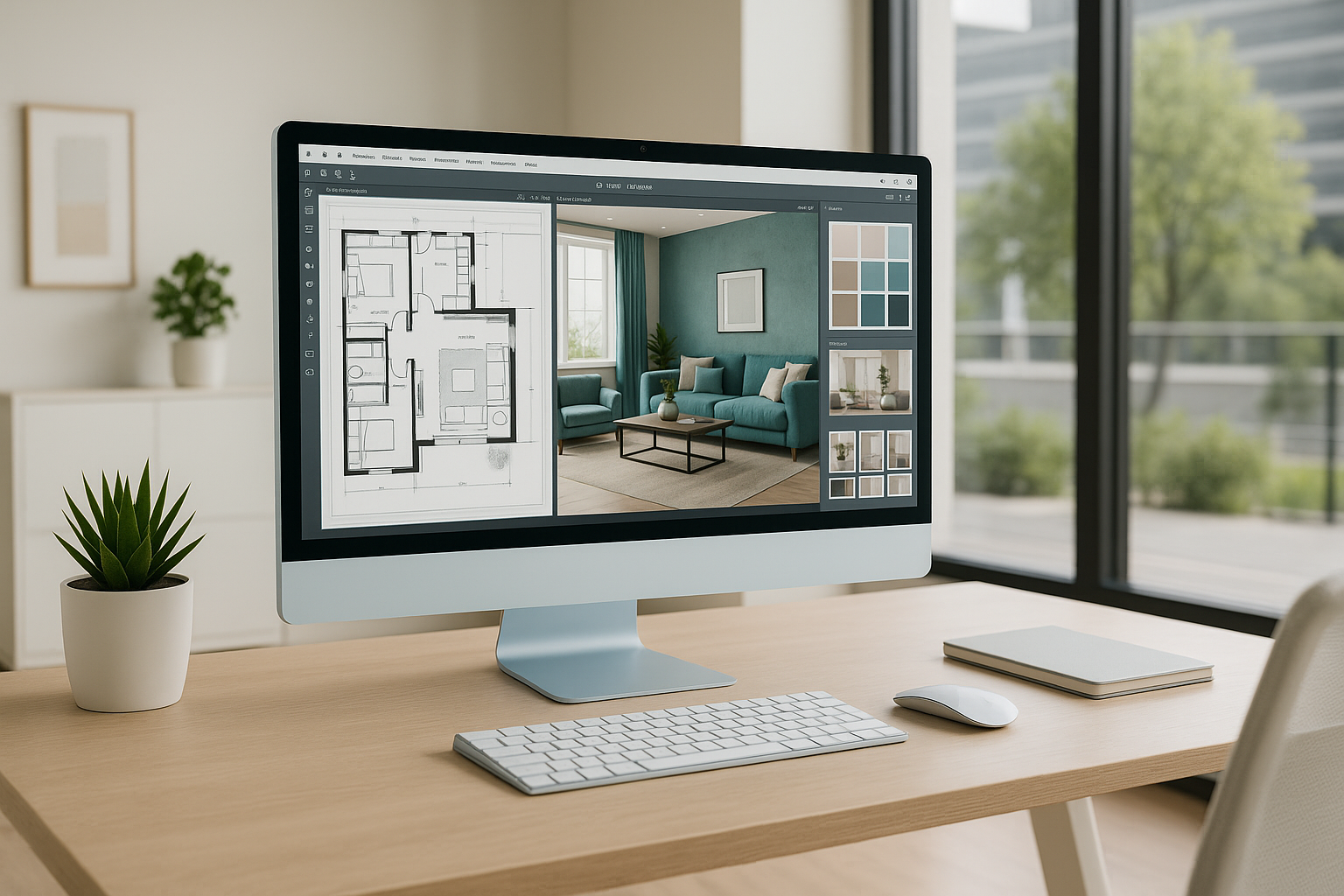
Mixed use lobby. Needs to go out today.
08:30. Open the model. Take the Revit file from the main team. Duplicate the view. Set 16:9. Set eye level. Hide categories you do not want in the render. Clean base first or the image tool will try to hide the mess.
09:00. Base render in Enscape or D5. Run a morning and a later light. Keep only key assets like reception, seating, and feature elements. Export at 4K with alpha and depth.
09:45. Image variants. Feed the best angle to the image tool. Tell it to keep layout. Ask for:
- “same lobby darker timber hotel style”
- “same lobby brighter office style european furniture”
- “same lobby keep layout more plants terrazzo floor”
Now you have three looks from the same camera. Same geometry. Only mood and finishes changed. Save all three.
10:30. Human check. Check doors, exits, glass, and any blocked fire path. Pick the two that look buildable. Drop the one that looks like pure marketing.
11:00. Add plan or axon. Export a small plan from Revit and place it with the images so the client sees it is the real layout.
11:30. Text. Write two or three lines explaining the difference between the two options.
12:00. Send. Client sees two options, same camera, same layout, different mood. That usually gets a fast answer.
Old way: day and a half. This way: half a day.
Plugging Renders into the Rest of Your Setup
Rendering is part of the same line of tools. If you already use AI for briefs, room data sheets, or early massing in AI tool stacks for architects, keep rendering beside it.
- text tool → narrative, scope, client email,
- BIM or modeling → real geometry,
- real time render → base image,
- image pass → polish, mood, marketing.
One stack. Not five random apps.
More examples are in architectural renderings enhanced by AI.
Keeping It Looking Built, Not Dreamed
Fast is good. Fast and fake is where clients stop trusting the image. In 2025 the AI/image pass is strong enough to finish a render, but it will also smooth things so much that it erases “real-world signals” if you let it. Keep those signals in and the image still reads as a real project, not a mood board. Tools like Enscape, D5, Lumion and their AI enhancers all say the same thing this year: the more real the base, the better the AI finish.
- Keep real camera height. 1.4–1.6 m for interiors, 1.6–1.7 m for exteriors. That is where people’s eyes live, so that is what looks “true.” Low hero angles and drone angles are the fastest way to make an AI-polished image look fake.
- Lock real reflections in the renderer. Do glass, metals, and water in Enscape/D5/Lumion, not in the image tool. AI upscalers and enhancers guess reflections and often smear mullions or street fronts. If the reflection is already right, the enhancer only sharpens it.
- Match your material board, not the AI palette. 2025 image models love beige and over-clean timber. Pull their output back to the actual stone, paint RAL, and fabric in the spec so the client does not think you changed the scheme. Most of the heavy “it looks fake” feedback is actually “that is not the color we agreed on.”
- Show one drawing with the view. Plan, axon, or section thumbnail next to the render tells people this came from a real model and did not drift. A lot of 2025 client decks that use AI renders do this to keep trust high.
- Add the line once: “visual enhanced from project model.” Short, honest, and it matches what firms are doing when they run AI polish on Enscape/D5 exports.
You can push it further with a few “real-world” anchors that AI will not invent on its own:
- Scale cues. People, bikes, planters, street furniture at correct height. AI enhancers in 2025 are better at scale, but small characters and toy cars still show up if the base is vague. Drop real-scale assets before the image pass.
- Lighting that matches weather. If it is an overcast exterior, do not let the image stage make it golden hour. Keep sky, shadows, and interior brightness in the same story or it will read as montage.
- Code and access bits. Grab bars, door clearances, exit signs. Image tools love to delete them. Put them back in the base, or paint them back after the image pass, or the render stops being believable to anyone who runs projects.
- Don’t over-filter. Current guides on photorealistic rendering all say the same thing: small color and contrast corrections, not heavy LUTs, or it starts to look like an AI demo.
If you keep those in, you get the good part of 2025 AI (speed, detail, fast variants) without losing the “this is the building we are actually drawing.” That is the version clients are saying yes to.
Do Performance Checks Before You Show the Pretty Picture
Run a quick daylight or envelope suggestion before you do the image step. That way you do not show a south facing glass box that will be rejected. See Artificial Intelligence in Building Design for the building checks. Test orientation, shading, and glazing, then render the good option.
What to Hand to the New Person
If you have to train a junior fast:
- show how to set and lock a camera in Revit, SketchUp, or Rhino,
- show how to export a clean Enscape, D5, or Lumion view with depth,
- show how to make three or four image variations without moving the layout,
- show how to spot tool mistakes like floating chairs or missing doors,
- show how to add one plan and one paragraph.
That is a one afternoon lesson and then they can support real client work.
Stuff to Keep on the Shelf
These sit well with this workflow:
FAQ
Questions people ask.
Can I do this with free or student tools?
Yes. SketchUp or Blender for the model. Blender or a light renderer for the base. Image tool for polish. See free home and design software.
Do I have to tell the client it is image enhanced?
Say it once on the mail or sheet: “visual enhanced from project model.” Geometry is still yours.
Is this only for interiors?
No. Exteriors often benefit more because of sky, weather, people, night versions, and wet ground. Urban renders especially.
What if the tool keeps changing stuff I need to keep?
Add “keep layout”, “keep windows”, or “do not move furniture” to the prompt. If it still moves, mask the area and let it touch only the part you want.
Wrap Up
Rendering did not die. Slow rendering did. If the model is right, the camera is honest, and you let the image step handle the last 30 percent, you can finish in a day what used to take two. That is how teams are working in 2025: model → fast render → image polish → client.
Keep it in that order.
See also: AI tool stacks for architects.